What happens when you ignore a Screen Time limit?
When you ignore a Screen Time limit you set for yourself, the app reopens and the extra minutes are logged in your usage report, and that is all: no one is notified and nothing changes tomorrow. Apple's iPhone User Guide for iOS 26 says it plainly: "By default, Screen Time limits can be ignored once reached." That is the whole problem in one sentence.
A limit with a free skip button is a suggestion.
Proof: what a priced limit looks like
Time Debt runs on Apple's Screen Time system but swaps the free skip for a visible trade.
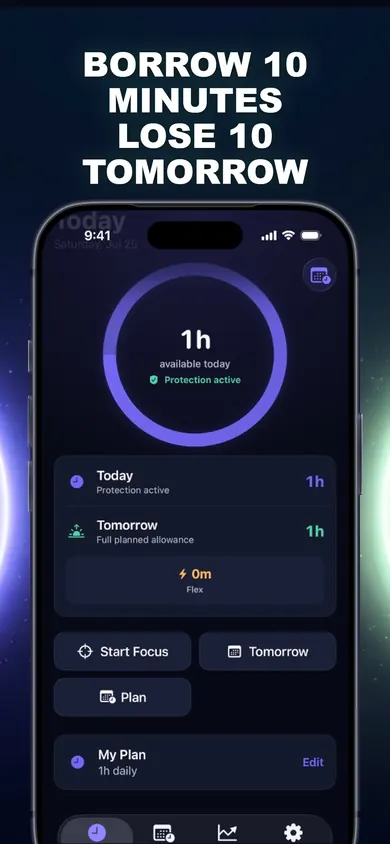
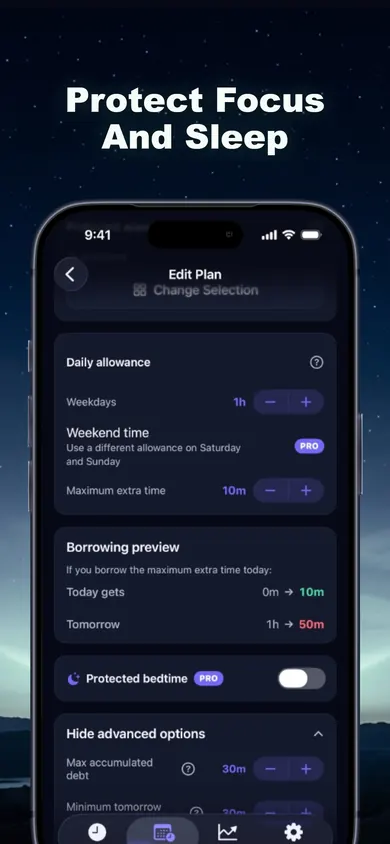
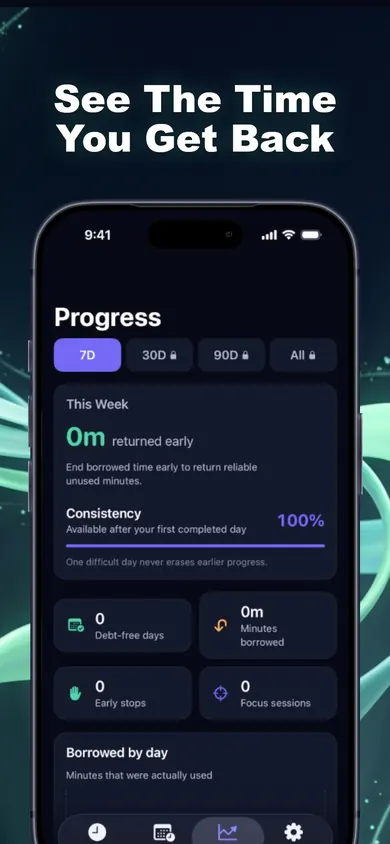
A Tuesday with a one-hour limit
The limit on social apps is one hour. It runs out at 8:40 p.m. The screen offers One More Minute, so a reply gets finished. At 8:41 it comes back, and this time it is Remind Me in 15 Minutes. At 8:56, Ignore Limit for Today. Bedtime arrives at 11:30 with roughly two and a half hours of "one hour" logged, and the only consequence is a grey bar in a weekly report nobody opens.
Same evening with Time Debt: the shield appears at 8:40. Borrowing 15 minutes shows the trade before anything happens, today plus 15, tomorrow's hour down to 45. Confirming is still allowed. It just is not free anymore.
Ignore Limit questions, answered
Everything people ask about the buttons on the iPhone limit screen. Button names come from Mac Observer's walkthrough and Apple's own guides; iOS versions differ, so trust what your phone shows.
| Button | What it does | Cost tomorrow |
|---|---|---|
| One More Minute | 60 seconds, then the limit screen returns | None |
| Remind Me in 15 Minutes | Keeps the app open and asks again in 15 | None |
| Ignore Limit for Today | Switches the limit off until tomorrow | None |
| Ask For More Time | Shown instead when Block at End of Limit is on; needs the passcode or a parent | None, but someone has to say yes |
| Time Debt: Borrow | Choose 5, 10, 15 or a custom amount within your cap | Exactly that many minutes, once |
What happens when you ignore a Screen Time limit?
On a limit you set for yourself, nothing visible: the app opens again and the extra time is simply added to your Screen Time usage report. Nobody is notified, the limit does not shrink, and it starts fresh the next day.
What does One More Minute do?
It gives you sixty seconds in the app, then the limit screen returns. It is meant for finishing a message, not for another round of scrolling.
What does Remind Me in 15 Minutes do?
It lets you keep using the app and brings the limit screen back after 15 minutes. You can choose it again when it reappears.
What does Ignore Limit for Today do?
It switches that limit off until the next day. The app stays open for as long as you like, and Screen Time still records the minutes.
Does anyone get told when I ignore my limit?
Not on your own phone. On a child's device managed through Family Sharing with Block at End of Limit, the child sees Ask For More Time instead and a parent has to approve it.
How do I stop myself from ignoring my own limit?
Apple's route is a Screen Time passcode plus Block at End of Limit or Block at Downtime, so the limit cannot be dismissed without the code. That works best when someone else holds the code. Another route is to make extra time cost something you can see, which is what Time Debt does.
Did iOS 27 change Ignore Limit?
iOS 27 introduced Time Allowances and Screen Time Schedules, which group limits by category such as Social Media. Apple's iOS 27 guide does not describe the limit screen's buttons, so check your own phone when a limit is reached.
Is Time Debt free?
The core plan is free: one full plan with real blocking, borrowing, automatic repayment, 7-day history and emergency access. Time Debt Pro adds multiple plans, custom schedules, multi-day repayment and longer history.
Honest limits of Time Debt
- Emergency access can remove every Time Debt shield until tomorrow, at no cost, at any time. We kept that on purpose; a blocker that traps you is one you delete.
- On your own iPhone, Screen Time permission can be withdrawn in Settings. Time Debt is a voluntary commitment tool, not a lock.
- It does not change limits set in iOS Settings or by a Family Sharing organizer, and it is iPhone only.
- The core plan has one plan and 7-day history. Multiple plans, custom schedules and multi-day repayment are Pro.
Who should pick something else
If you want a limit you truly cannot skip, give a Screen Time passcode to someone you trust and turn on Block at End of Limit; Time Debt will always leave you an exit. If you are managing a child's own iPhone from yours, Apple's Family Sharing is built for that and Time Debt has no remote monitoring. And if one evening of overuse does not bother you, Apple's default limit is fine as it is.
How Time Debt replaces Ignore Limit in 3 steps
- Set your limit. Pick apps, categories and websites with Apple's private picker and set a daily allowance (a separate weekend allowance is a Pro option).
- Borrow deliberately. When time runs out, a calm shield appears. Choose an amount and see today, tomorrow's normal allowance and tomorrow's adjusted allowance before you confirm.
- Repay once. Tomorrow starts shorter by exactly what you borrowed. No interest, nothing compounds, and tomorrow never drops below your chosen minimum.
Start on your iPhone
Put a price on the next Ignore Limit. Time Debt on the App Store has a free core plan and no account.

Updated November 2026 · iOS 26 and iOS 27 guides checked 3 November 2026
Related
- Time Debt: borrow screen time from tomorrow, on purposeTime Debt blocks apps at your daily limit. Want more? Borrow 5, 10 or 15 minutes and tomorrow starts that much shorter. Free core plan on iPhone.
- App Limits vs Downtime: which to use, and your first weekApp Limits cap how long, Downtime caps when. Play a 20-second day with each, then follow a 7-day first week. iOS 26 and iOS 27 checked.
- Limit a child's screen time without Family SharingA visual step guide for a shared or handed-over iPhone: lock Screen Time on the device, then add a borrow-and-repay allowance with parent approval.
- Opal vs Screen Time (and a third option)Opal vs Apple Screen Time, compared at the moment your limit runs out, plus a third way that makes extra time cost tomorrow. Checked Nov 2026.