App Limits vs Downtime: what's the difference?
App Limits cap how long you can use chosen apps each day; Downtime caps when you can use your phone at all, apart from calls, messages and apps you allow. According to Apple's iOS 26 guide, both can be ignored by default once reached, unless you set a Screen Time passcode and turn on blocking. Pick App Limits for an all-day drip, Downtime for a bedtime habit.
Limits fight "how much". Downtime fights "when". Most people's problem is one of the two.
App Limits and Downtime questions
What is the difference between App Limits and Downtime?
App Limits cap how long you can use chosen apps each day. Downtime caps when: during the scheduled hours most apps are unavailable except calls, messages and apps you allow.
Which is better for reducing screen time?
App Limits suit a habit that is spread across the day. Downtime suits a habit tied to a time, such as scrolling in bed. Many people need both: a daily cap plus a protected evening.
Can you ignore Downtime on iPhone?
By default, yes. Apple's iOS 26 guide says that when Block at Downtime is off you see a reminder but can choose to continue. Turning on Block at Downtime needs a Screen Time passcode.
Do App Limits and Downtime still exist in iOS 27?
iOS 27 introduces Time Allowances (how long, by category such as Social Media) and Screen Time Schedules (when). Apple's iOS 27 guide says these need iOS 27 on all your Apple devices.
What does Always Allowed do?
Apps and contacts in Always Allowed stay available during Downtime or a Schedule and after you reach a limit, for example family members or the Health app.
How is Time Debt different from App Limits?
It is also a daily allowance built on Apple's Screen Time system, but when time runs out you borrow a set amount from tomorrow instead of tapping a free Ignore. Protected bedtime hours can cross midnight, and you decide in advance whether borrowing is allowed during them.
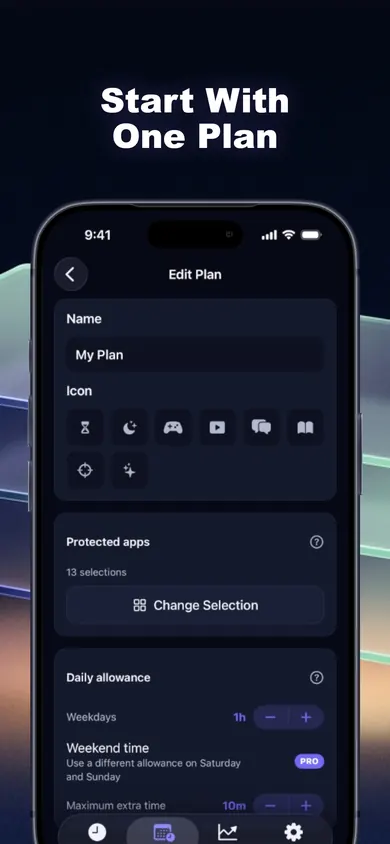
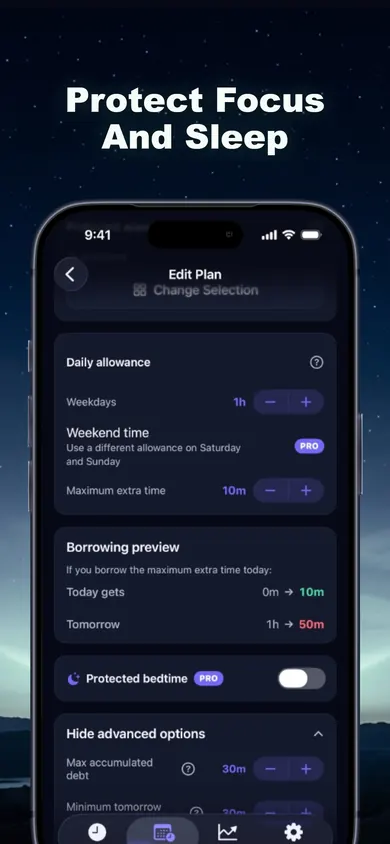
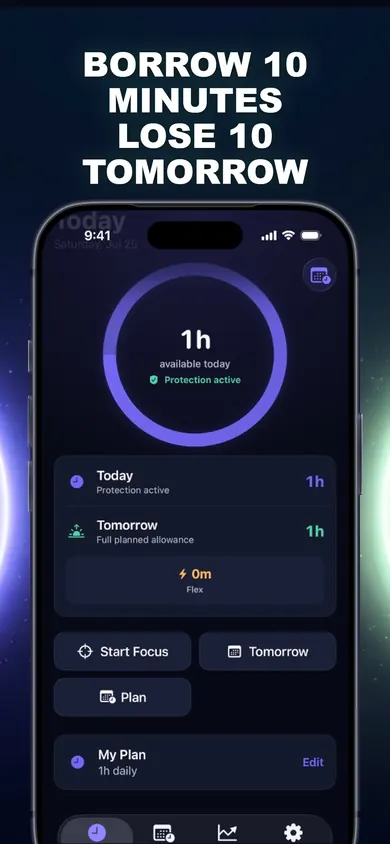
Proof: Time Debt's plan, screen by screen
Who this first week is not for
If you are setting limits for your child's own iPhone from your phone, Apple's Family Sharing is the right tool; Time Debt's family tools work on a shared or handed-over iPhone, with no remote monitoring. If you need a hard wall you cannot open, a passcode held by someone else plus Block at Downtime does that better. And if Screen Time already works for you, keep it. Free and built in is hard to beat.
App Limits vs Downtime vs Time Debt, side by side
| App Limits (iOS 26) | Downtime (iOS 26) | Time Debt (ours) | |
|---|---|---|---|
| Controls | How long, per app or category | When, by schedule | How long, daily allowance |
| When it runs out | Can be ignored by default | Reminder; can continue by default | Shield; stop, or borrow from tomorrow |
| Harder version | Passcode + block at end of limit | Passcode + Block at Downtime | Borrowing cap and a minimum for tomorrow |
| Time windows | Customize Days | Every Day or Customize Days | Weekday/weekend limits; protected hours (Pro) |
| Exit | Always Allowed apps | Always Allowed apps | Emergency access, free, until tomorrow |
| iOS 27 name | Time Allowances | Screen Time Schedules | Same app |
Sources: Apple's iOS 26 guide and Apple's iOS 27 guide, read 3 November 2026; Time Debt's App Store listing. iOS 27's Time Allowances and Schedules need iOS 27 on all your Apple devices.
Your first week: one plan, seven days
Shuffle through the cards. Each day adds one decision, so you never set up everything on the first night and abandon it on the second.
Day 1
Measure, don't block
Leave everything on. Open Settings, Screen Time and note your daily average and your top three apps. Install Time Debt but do not set a plan yet.
Day 2
Pick the shape of the problem
Is your overuse spread across the day, or does it cluster at night? Spread = a daily allowance. Clustered = a protected time window. Both = start with the allowance.
Day 3
Set a realistic allowance
In Time Debt, choose the apps with Apple's private picker and set an allowance near your current average, not your dream number. A separate weekend allowance is a Pro option on the plan screen.
Day 4
Meet the shield
When the allowance runs out, the shield appears. Stop for today, or open Time Debt and see today, tomorrow and tomorrow adjusted side by side before borrowing.
Day 5
Repay without drama
Today starts shorter by exactly what you borrowed, once. No interest. If you end a borrowed session early, the unused minutes come back.
Day 6
Add the evening
Set protected bedtime hours, which can cross midnight, and decide now whether borrowing is allowed during them. (Protected bedtime is marked Pro on the plan screen.)
Day 7
Read the week honestly
History shows allowances, borrowed and repaid minutes, focus sessions and days within plan. Lower the allowance by 10 minutes only if most days fit.
Start near your real number. A limit you hit every day is a limit you will learn to skip.
How Time Debt works in 3 steps
- Set your limit. Distracting apps, categories and websites, and a realistic daily allowance.
- Borrow deliberately. 5, 10 or 15 minutes or a custom amount within your cap, with tomorrow's adjusted allowance shown before you confirm.
- Repay tomorrow. Automatically, once, never twice. Tomorrow never drops below the minimum you set.
Honest limits
- The free core plan is one full plan with blocking, borrowing, repayment, 7-day history and emergency access. Weekend time and protected bedtime are marked Pro in the plan screen, alongside multiple plans and longer history.
- Emergency access removes every Time Debt shield until tomorrow at no cost. That is our design decision: a blocker you cannot leave is one you uninstall.
- It does not change Screen Time limits set in iOS Settings or by a Family Sharing organizer.
- The 20-second game above is a toy: real days are longer and the urge is quieter.
Download free on the App Store
Day 1 is just looking at your numbers. Time Debt on the App Store has no account and works offline.

Updated November 2026
Related
- Time Debt: borrow screen time from tomorrow, on purposeTime Debt blocks apps at your daily limit. Want more? Borrow 5, 10 or 15 minutes and tomorrow starts that much shorter. Free core plan on iPhone.
- What happens when you ignore a Screen Time limitIgnore Limit, One More Minute, Remind Me in 15: what each one does on iPhone, who sees it, and a free 3-tap check of what your habit costs.
- Limit a child's screen time without Family SharingA visual step guide for a shared or handed-over iPhone: lock Screen Time on the device, then add a borrow-and-repay allowance with parent approval.
- Opal vs Screen Time (and a third option)Opal vs Apple Screen Time, compared at the moment your limit runs out, plus a third way that makes extra time cost tomorrow. Checked Nov 2026.