What are Time Allowances on iPhone?
Time Allowances are iOS 27's daily time budgets: you set how long you can use a category of apps, such as Entertainment, Games or Social Media, plus a daily total, and apps work until either one runs out. They replace App Limits. Downtime became Screen Time Schedules, which set when apps are available. Both need iOS 27 or later on every Apple device you use, according to Apple's iOS 27 guide.
Allowances are "how long". Schedules are "when". Everything else is detail.
A mini story: the Downtime that vanished
It's a Sunday in late September. The phone updated overnight. At 10:40 p.m. you go to Settings, then Screen Time, to push Downtime back half an hour, and it isn't there. Instead there's a Screen Time Schedule with time windows, and Time Allowances with sliders for Social Media and Games. Nothing is broken; the words moved. This page is the map we wished we'd had that night.
Screen Time glossary: 24 terms, iOS 27 to app blockers
Orange tags are Apple's terms, with the iOS version that uses them. Green tags are FocusPass terms, taken from its App Store listing. Apple definitions are paraphrased from Apple Support pages read on 4 November 2026.
- Screen Time Schedule iOS 27
- When you can use apps. A schedule for chosen days, split into named time windows like work, dinner and evening. Replaces Downtime. Apple Support
- Time Window iOS 27
- One block inside a Schedule. Each window shows icons for the Time Allowance categories available during it. Apple Support
- Time Allowance iOS 27
- How long you can use apps each day, per category such as Entertainment, Games or Social Media. Replaces App Limits. If an app declares a website, the allowance covers both. Apple Support
- Daily total iOS 27
- The overall device budget. Apps work until they hit either their category's allowance or the daily total. Apple Support
- Match Screen Time Schedule iOS 27
- A switch that applies your Time Allowances only during certain windows of your Schedule. Apple Support
- Always Allowed iOS 27
- Apps and contacts available at all times, whatever your Schedules or Allowances say. Apple's example: family members or the Health app. Apple Support
- Pickups All versions
- How many times you picked up your devices, shown in the Screen Time weekly report. Apple Support
- Downtime iOS 26 and earlier
- Scheduled times when most apps are unavailable. A 5-minute reminder arrives before it starts. Apple Support
- Block at Downtime iOS 26 and earlier
- Needs a Screen Time passcode. With it on, apps can't open during Downtime; with it off, you see a reminder but can continue. Apple Support
- App Limits iOS 26 and earlier
- Daily time limits for a category or individual apps. By default they can be ignored once reached. Apple Support
- Customize Days iOS 26 and earlier
- Different Downtime hours or limits for specific days, such as weekends. Apple Support
- Shield FocusPass
- Apple's native screen that appears when you open a protected app. FocusPass's reads PROTECTED.
- Go Back FocusPass
- The shield button that returns you to what you were doing. Each tap records one Focus Save.
- Pass FocusPass
- A timed window to use a protected app, for example 5, 10 or 15 minutes, with an optional reason like Reply or Research.
- Relock FocusPass
- Scheduled with iOS before the app opens, so protection returns when the Pass ends even if FocusPass is closed.
- Reset Window FocusPass
- An optional gap that stops one Pass from turning into three in a row.
- Focus Save FocusPass
- One counted Go Back. No invented minutes, no guesses about what you did next.
- Wallet FocusPass
- A daily Pass plan for a group of apps. Free includes one.
- Focus Zone FocusPass
- Protected hours for Work, Study, Evening or Sleep. Free includes one.
- Essentials FocusPass
- Apps you must always reach, which never get a shield.
- Task Access FocusPass Pro
- Up to 3 minutes for one specific task when you're out of Passes. Never spends a Pass, and limited so it can't become a loop.
- Deep Focus FocusPass
- A 25, 45, 60 or 90-minute session with a Live Activity. Free includes one a day.
- Protection Check FocusPass
- A screen showing exactly what's working, from Screen Time access to active rules, and how to fix what isn't.
iOS 26 to iOS 27: what moved where
| iOS 26 and earlier | iOS 27 | What it answers |
|---|---|---|
| Downtime | Screen Time Schedule | When can I use apps? |
| App Limits | Time Allowances | How long can I use them? |
| Always Allowed | Always Allowed | What stays open no matter what? |
| Per-device settings | Share Across Devices | Do my rules follow me to iPad and Mac? |
Screen Time schedules on iPhone: questions
What replaced Downtime in iOS 27?
Screen Time Schedules. Apple's iOS 27 guide describes Schedules as setting when during the day you can use apps, with named time windows such as work, dinner and evening. Apple Support.
What replaced App Limits in iOS 27?
Time Allowances, which set how long you use apps each day, by category (Entertainment, Games, Social Media) and as a daily total.
Why don't I see Time Allowances in Settings?
Apple's guide says Schedules and Time Allowances need iOS 27, iPadOS 27, macOS 27, watchOS 27 or visionOS 27 or later on all your Apple devices, and on every device in a Family Sharing group.
Can I still ignore a Screen Time limit?
On iOS 26 and earlier, Apple says limits can be ignored once reached by default, unless a Screen Time passcode and Block at Downtime are set. Apple Support, iOS 26. Apple's iOS 27 guide does not describe the limit screen, so check your own phone.
Is a Time Allowance the same as an app blocker?
Not quite. A Time Allowance is Apple's daily budget for a category. An app blocker like FocusPass puts a shield in front of chosen apps and asks you to choose Go Back or a timed Pass every time.
Is FocusPass free?
Free covers native shields, Go Back and Focus Saves, timed Passes, automatic relocking, one Wallet, one Focus Zone, one Deep Focus session a day and 7-day insights. FocusPass Pro adds more Wallets and Zones, Task Access and unlimited Deep Focus.
Proof: the app-blocker words, on screen
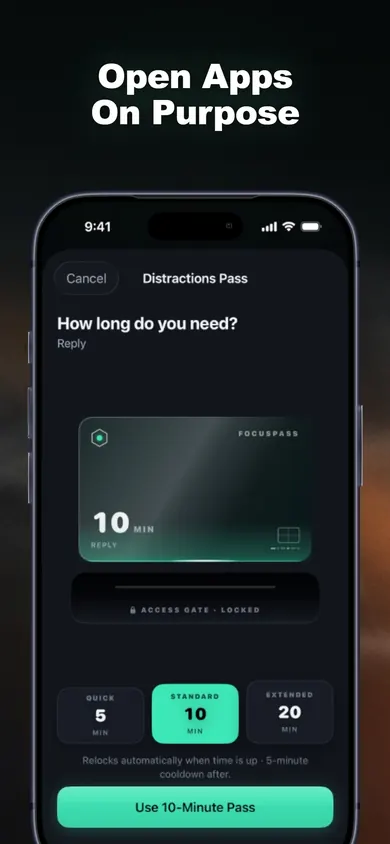
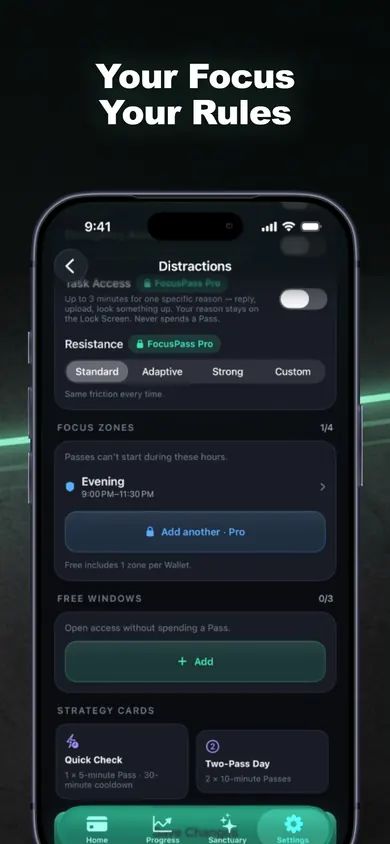
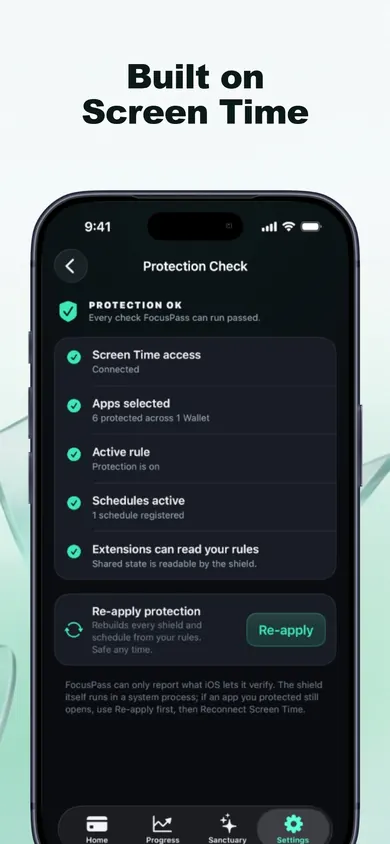
Left to right: a Pass length picker; Focus Zones and Task Access (marked Pro); Protection Check.
Honest limits
- FocusPass is built on Apple's Screen Time frameworks. It doesn't replace Time Allowances, and if a parent or organization manages Screen Time on the phone, their settings come first.
- Apple keeps your app selections opaque, even to FocusPass, so it can't list which apps you blocked by name in its own reports.
- It needs iOS 18 or later on iPhone or iPad. The Apple Watch app shows status and the focus timer; blocking happens on the iPhone.
- Turn Off All Protection always works and is never behind a purchase. That's a design decision we made: a blocker you can't leave is one you end up deleting.
- Who should pick something else: if a daily budget per category is all you want, Apple's Time Allowances are free and already on your phone.
How FocusPass works in 3 steps
- Protect. Pick apps, categories or websites with Apple's picker.
- Choose. Every shield offers Go Back or Use a Pass.
- Return. The Pass ends and the app relocks by itself.
A Time Allowance counts down in the background. A shield asks you a question at the door.
Get FocusPass free
Learned the words? Try the shield. FocusPass on the App Store.

Updated November 2026
Related
- FocusPass: the free iPhone app blocker with timed PassesFocusPass blocks the apps you pick with Apple's Screen Time shield. Need one? Take a 5, 10 or 15-minute Pass and it relocks itself. Free core.
- App blockers that allow temporary access, comparedFocusPass, one sec, Opal, Jomo and ScreenZen compared on one thing: how each lets you back into a blocked app for a few minutes. Checked Nov 2026.
- How to block apps on your own iPhone: a checklistA 5-minute checklist to block apps on your own iPhone: Screen Time settings first, then when an app blocker helps. Take the 3-tap quiz for your list.
- How to stop bypassing your own Screen Time limitsYou set the limit, then you type your own passcode. Tap your bypass moment for the fix, and compare 5 setups by how hard they are to get past.