How do you block apps on iPhone for yourself?
Open Settings, tap Screen Time, set a daily limit or a schedule for the apps you choose, then lock those settings with a passcode, ideally one somebody else keeps. If you keep tapping past the limit, or need an app for work but not for scrolling, add a blocker with timed access.
Blocking an app is easy. Blocking it from yourself, the person who knows the passcode, is the actual job.
Screen Time vs an app blocker: the comparison strip
The full checklist to block apps on your iPhone
Part A: Screen Time, about three minutes
- Open Settings → Screen Time and make sure it is on.
- Add a daily limit for one category or a few named apps. In iOS 27 the controls are labeled Time Allowances and Schedules; older versions say App Limits and Downtime.
- Add a schedule for your worst hour, for example 9 PM to 11 PM, and mark which apps are always allowed (phone, maps, your alarm).
- Lock it: {APPLE} lists Passcode & Management → Lock Screen Time Settings in iOS 27. Set up passcode recovery with your Apple Account too, or you may be locked out yourself.
- Hand the passcode to someone else to type in. If you know it, you are not really locked out.
Part B: a blocker, about two minutes
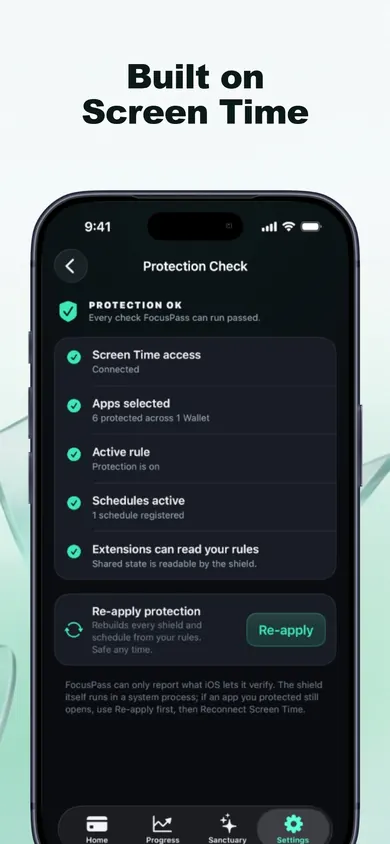
- Install a blocker that uses Apple's Screen Time frameworks, so the block is a real iOS shield.
- Protect the one app you open on autopilot. Not ten. One.
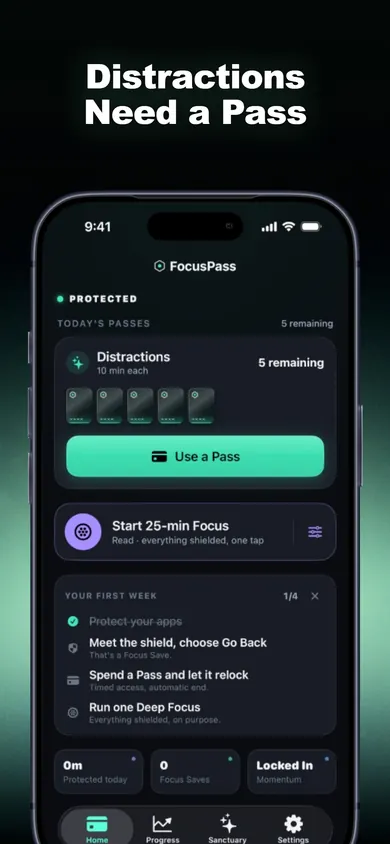
- Give it a daily number of timed Passes (in FocusPass, a Wallet) instead of a hard ban.
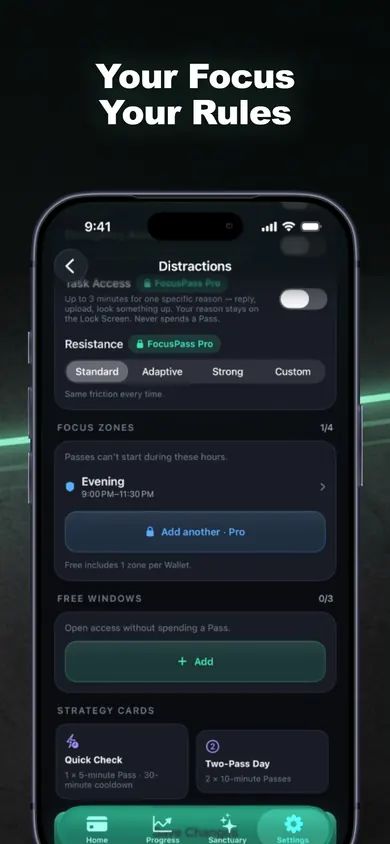
- Add a Focus Zone for your worst hour.
- Put anything you must reach in Essentials.
Who this is not for
This is for adults managing their own phone. Parents should start with Apple's Family Sharing, which manages a child's settings from your device. If you want an app gone forever, delete it. And FocusPass keeps an off switch by design: Turn Off All Protection always works.
A five-minute setup, start to finish
8:55 PM. Settings, Screen Time, a 45-minute daily limit on Social. Partner types the passcode.
8:58 PM. FocusPass: protect Instagram, Wallet of five 10-minute Passes, an Evening Zone from 9:30. Essentials: Messages, Maps.
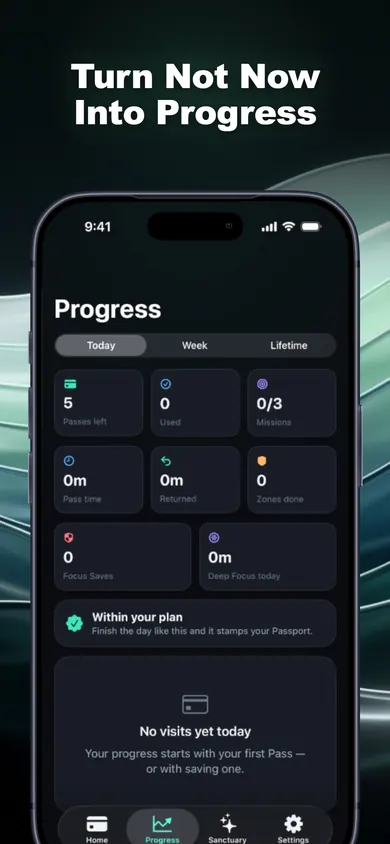
9:41 PM. Instagram, out of habit. Shield. Go Back. One Focus Save.
A made-up evening to show the order of steps, not a user story.
Proof: the screens from Part B
Blocking apps on your own iPhone: questions
Can you block apps on your own iPhone without another app?
Yes. Screen Time in Settings lets you set daily time limits and scheduled quiet hours for apps and categories. The catch is that a limit you set for yourself can be dismissed from the limit screen.
How do I stop myself from tapping Ignore Limit?
Lock Screen Time settings with a passcode someone else chooses and keeps, or use a blocker where every way back in has a set length and relocks on its own, such as a FocusPass Pass.
Where is the Screen Time passcode in iOS 27?
Apple's guide lists Settings, then Screen Time, then Passcode & Management, then Lock Screen Time Settings. Set up Screen Time Passcode Recovery with your Apple Account at the same time.
Can I block an app but still use it sometimes?
Yes. That is what FocusPass is for: the shield offers Go Back or Use a Pass, a Pass lasts the length you choose, and the app locks again when it ends.
Is blocking apps on iPhone free?
Screen Time is built in and free. FocusPass has a free plan with shields, timed Passes, automatic relock, one Wallet, one Focus Zone and one Deep Focus session a day; Pro is a monthly or yearly subscription for more.
Try it tonight
Do Part A now. If you tap past it twice this week, do Part B with FocusPass on the App Store.

Updated November 2026
Related
- FocusPass: the free iPhone app blocker with timed PassesFocusPass blocks the apps you pick with Apple's Screen Time shield. Need one? Take a 5, 10 or 15-minute Pass and it relocks itself. Free core.
- App blockers that allow temporary access, comparedFocusPass, one sec, Opal, Jomo and ScreenZen compared on one thing: how each lets you back into a blocked app for a few minutes. Checked Nov 2026.
- How to stop doomscrolling at night: the factsWhat 2025-2026 research says about scrolling in bed, plus a fix for the exact moment you start. Sources dated and linked. Updated Nov 2026.
- Printable digital detox worksheet for beginnersA free 2-page digital detox worksheet for beginners: a one-evening app audit, three starter rules and a 7-day tally. Print it, no sign-up.