How do you stop bypassing Screen Time on your own iPhone?
You stop bypassing Screen Time by fixing the moment you bypass, not by setting a stricter limit: hand the passcode to someone else, or make every way back in a short, timed choice that locks again by itself. A limit you can dismiss with your own code is a reminder. That is fine, as long as you know which one you set.
Most people bypass in one of five ways: typing their own passcode, adding time from the limit screen, switching to the browser, letting one exception turn into three, or turning the blocker off late at night. Each has a different fix, which is why the moments above are separate.
Honest limits: FocusPass can be bypassed too, on purpose
We want to be straight about this before you download anything. FocusPass is not a lock you cannot open. Turn Off All Protection always works and is never behind a purchase or a streak. We argued about it and kept it, because a blocker that traps you during a real emergency is a blocker people delete by Friday.
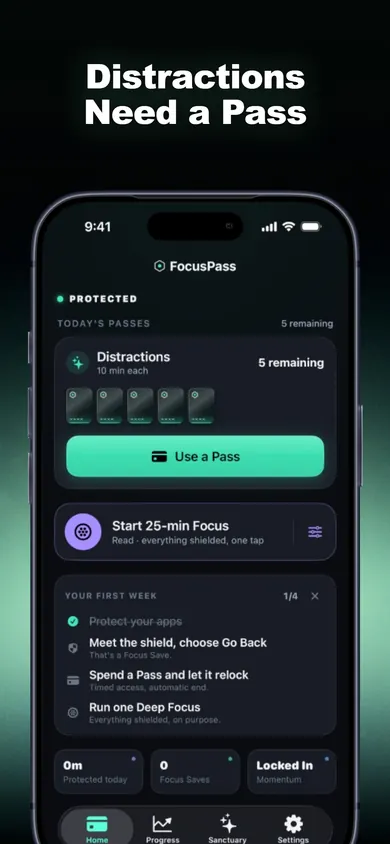
- What FocusPass changes is the path: you meet a shield, choose Go Back or a Pass of a set length, and the app locks again when the Pass ends.
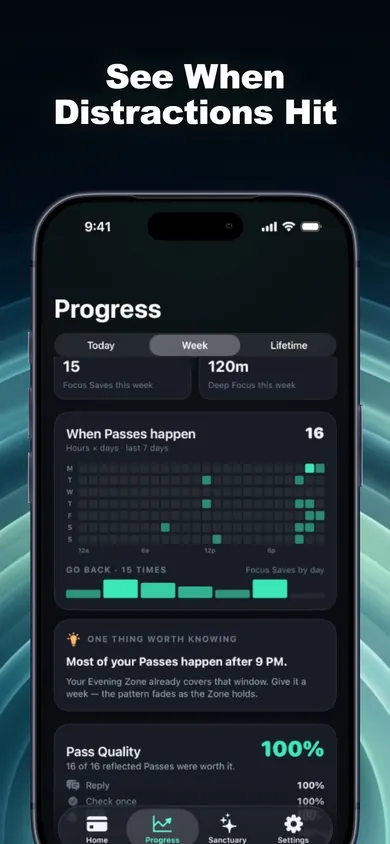
- It counts each Go Back as a Focus Save. It does not invent “minutes saved”.
- Task Access, Adaptive Resistance and more than one Wallet or Focus Zone are Pro. The free plan covers one Wallet, one Zone and one Deep Focus session a day.
- It needs iOS 18 or later. If a parent or organisation manages your Screen Time, their settings come first.
If you need a version of you at 11 p.m. that genuinely cannot get in, pick a stricter setup from the comparison further down.
Bypass check: which fix matches how you get around your limits?
Tick every way you get around your own limits. The matching fixes appear underneath. Nothing is stored.
Tick at least one box to see your fixes.
App blockers you can't easily bypass, compared at the moment you try
Five setups, judged on one question: what happens when you try to get back in? Checked against each maker's own site in November 2026.
Who should pick what: if you want zero way out, Brick or Opal's Hard Mode. If you mostly need a pause, one sec. If you genuinely need the apps for work or messages and want each visit to be short and on purpose, that is the gap FocusPass was built for.
Screen Time bypass questions, answered
How do I stop bypassing Screen Time on my own iPhone?
Find the exact moment you bypass (typing your own passcode, adding more time, switching to the browser) and fix that moment, not your willpower. Usually that means someone else holds the passcode, a pause that makes you choose, or a timed way back in that locks again on its own.
Why does a Screen Time passcode not work when I set it myself?
Because you know it. A code you can type in two seconds is a speed bump, not a lock. If you want the passcode route, ask someone you trust to set it and keep it, and agree in advance when they will type it for you.
Is there an app blocker I can't bypass?
Some try hard. Opal's site describes a Hard Mode with "No way out. You can't turn Opal off." Brick, a $59 physical device, needs another tap on the device before apps open again. FocusPass is deliberately not one of these: Turn Off All Protection always works, because we think a blocker you can never leave is one people end up deleting.
Can I still use an app for one quick task while it is blocked?
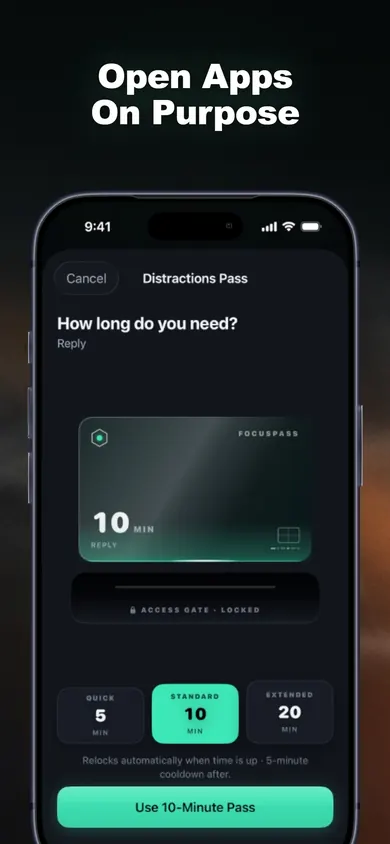
In FocusPass, yes: request a Pass for 5, 10 or 15 minutes with an optional reason like Reply or Post, and the app locks again when the Pass ends, even if FocusPass is closed. Task Access, up to 3 minutes for one task when you are out of Passes, is part of Pro.
What stops me opening the app in Safari instead?
Apple's Screen Time picker, which FocusPass and most blockers use, lets you choose websites as well as apps. Block the site version at the same time you block the app.
Does FocusPass block apps on my Apple Watch or iPad?
It works on iPhone and iPad with iOS 18 or later. The Apple Watch app shows your status and focus timer; the blocking itself always happens on your iPhone.
Is FocusPass free?
Native shields, Go Back and Focus Saves, timed Passes, automatic relocking, one Wallet, one Focus Zone, one Deep Focus session a day and 7-day insights are free. FocusPass Pro adds more Wallets and Zones, Task Access, Adaptive Resistance, unlimited Deep Focus and full history.
What if a parent or employer manages my Screen Time?
Their settings come first. FocusPass works inside Apple's Screen Time system and cannot override rules someone else manages.
One evening, two versions
Before: 9:40 p.m. The limit screen appears over the video app. The code is four digits you chose yourself. You type it without looking, and the next time you notice the clock it is 11:15.
After: 9:40 p.m. A shield says the app is protected. Go Back, or Use a Pass. You choose 10 minutes and the reason “Reply”, answer the message you actually opened it for, and at 9:50 the app locks again whether or not you remembered. One Go Back later that night is logged as one Focus Save. Nobody pretends it was a perfect evening; it was a shorter one.
Short version: the limit did not get stricter. The way back in got smaller.
Make it a habit with FocusPass
Block the apps you bypass most, give yourself a few Passes a day, and let the relock do the remembering.

FocusPass on the App Store · free, no account · Updated November 2026
Related
- FocusPass: the free iPhone app blocker with timed PassesFocusPass blocks the apps you pick with Apple's Screen Time shield. Need one? Take a 5, 10 or 15-minute Pass and it relocks itself. Free core.
- App blockers that allow temporary access, comparedFocusPass, one sec, Opal, Jomo and ScreenZen compared on one thing: how each lets you back into a blocked app for a few minutes. Checked Nov 2026.
- How to block apps on your own iPhone: a checklistA 5-minute checklist to block apps on your own iPhone: Screen Time settings first, then when an app blocker helps. Take the 3-tap quiz for your list.
- Block apps while studying: a free study-block plannerNew to app blockers? Plan one study block in three taps, then scratch to reveal your phone rule card: what to block, what to keep, how many Passes.